How to Extract a Color Palette from Any Image
Extracting colors from an existing image is one of the fastest ways to build a cohesive palette. Whether you're matching a brand photo, pulling colors from a competitor's site, or creating a mood board, image-based color extraction gives you exact values you can use in CSS, Figma, or any design tool.
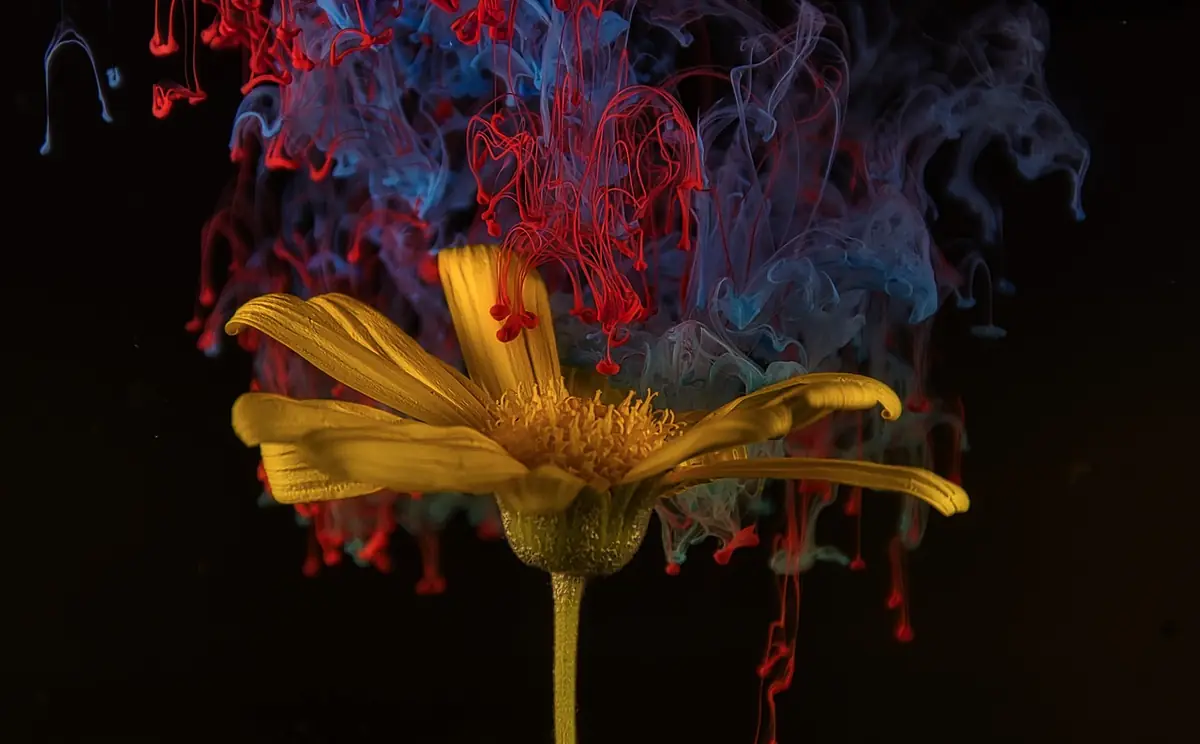
- Pull exact color values from any image — photos, screenshots, or designs.
- How Color Extraction Works.
- Covers dominant colors vs accent colors.
- Covers practical use cases.
- Covers tips for better extraction results.
How Color Extraction Works
Color extraction algorithms analyze every pixel in an image and group similar colors together using techniques like k-means clustering or median cut. The result is a ranked list of dominant colors — the colors that occupy the most area in the image. The algorithm returns exact HEX, RGB, and HSL values for each color, ready to use in your designs. The Image Color Extractor processes everything in your browser — your images never leave your device.
Dominant Colors vs Accent Colors
Dominant colors are the large, background-filling colors — sky blue in a landscape, skin tone in a portrait. Accent colors are smaller pops of contrast — a red flower, a yellow sign. Both matter for palette building. Typically, use 1–2 dominant colors as your primary and neutral tones, and 1–2 accent colors for CTAs, highlights, and interactive elements. A good extraction tool separates these automatically by frequency.
Practical Use Cases
Extracting colors from a client's product photo to build a matching website palette. Pulling brand colors from a logo when you don't have the brand guidelines. Creating a color scheme from a mood board image on Pinterest. Matching a physical material sample (photograph it, extract the colors). Reverse-engineering a competitor's palette from a screenshot. Building data visualization palettes from nature photography.
background-size animation or @property registered custom properties instead.Tips for Better Extraction Results
Use high-quality source images — compressed JPEGs introduce color artifacts that muddy the extraction. Crop the image to the area you care about before extracting. For product photography, remove or mask the background so the algorithm focuses on the product's colors. If the extraction returns too many similar shades, reduce the number of colors requested (5–6 is usually the sweet spot for a usable palette).
Frequently Asked Questions
How do I extract colors from an image?
Can I extract colors from a screenshot?
How many colors should I extract?
Use the Image Color Extractor — free, no signup required.
⚡ Open Image Color Extractor