Complete Guide to Free In-Browser Video Tools (2026)
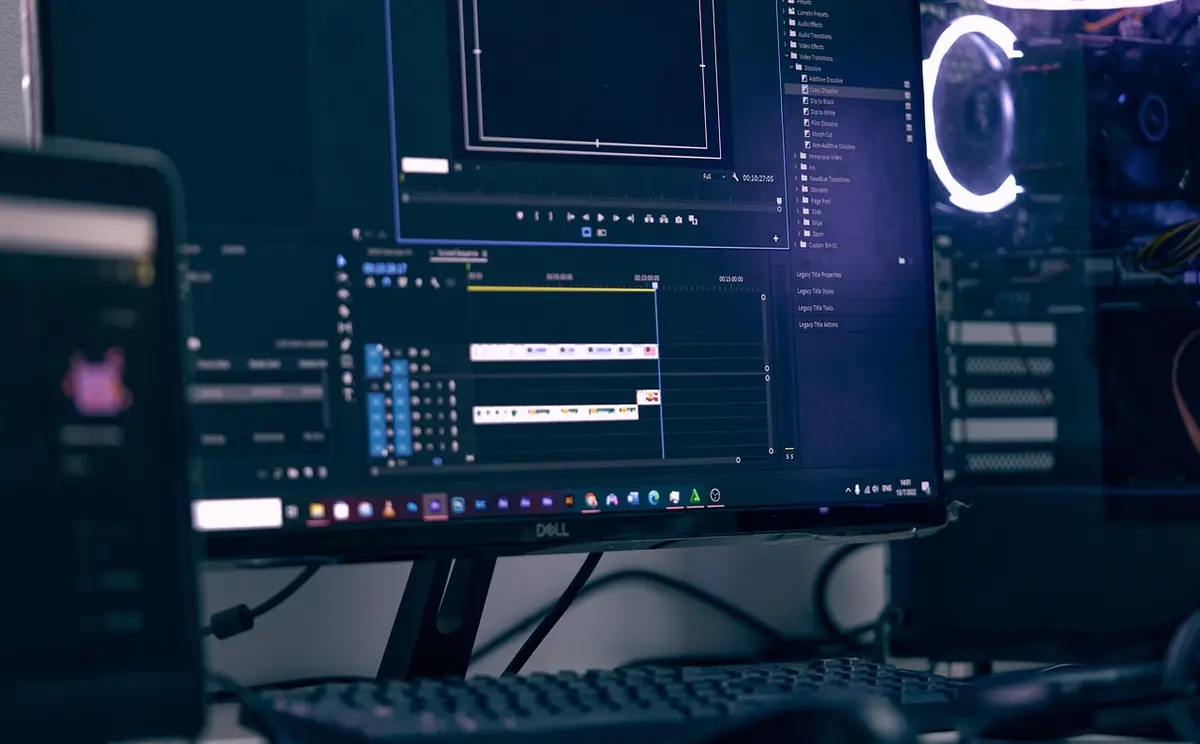
Twelve free tools, one shared FFmpeg.wasm engine, zero uploads. Here's what the new UDT Video Suite covers, what it doesn't, and where it sits next to Clideo, Kapwing, VEED, and the desktop tools you may already use.
Why Browser-Based Video Tools Matter Now
Two things changed in the past three years that made this batch of tools possible. First, browsers picked up enough WebAssembly performance that running FFmpeg locally is no longer a parlor trick — a 5-minute 1080p compression in Chrome on a 2022 MacBook Air takes under 60 seconds, faster than uploading to most cloud tools at typical home internet speeds. Second, WebGPU shipped in Chrome and Edge 113, then Safari 17, opening the door to GPU-accelerated encoding without a desktop app.
The result: tools that were "this needs to be a cloud service" five years ago no longer need to be. The cloud services still exist — Clideo, Kapwing, VEED, FreeConvert — and they still have nice UX, but their core advantage is gone for routine work. Your phone-shot clip doesn't need to make a round trip to a Frankfurt server to lose 3 seconds off the front.
What's in the v28 Video Suite
Twelve tools, grouped by what they actually do in a workflow. Every tool below is free, has no watermark on its output, and runs in your browser. The FFmpeg.wasm engine downloads once (~32MB) and caches across the suite — switching between tools doesn't trigger another download.
Compress & Format
Trim, Merge & Edit
Reframe & Rotate
Extract & Annotate
How the Suite Compares to Clideo, Kapwing, VEED, and the Rest
Each of the major cloud-based video tool ecosystems has a clear price point and a clear constraint. Here's an honest read on where each one wins and where the in-browser tools win:
Common Workflows in the Suite
The tools are most useful when chained. A few patterns that come up regularly:
Phone landscape → vertical social post
Record on phone (16:9 landscape), then: trim the fumbling start/end, resize to 9:16 with smart crop or blur fill, watermark with your channel name, compress to platform size. Total time on a modern laptop: under 2 minutes after the first run (which includes the FFmpeg.wasm download).
Interview to searchable transcript
Extract audio from the video interview (stream-copies in seconds when the source is MP4 with AAC), then run it through Audio Transcription. The Whisper model produces TXT, SRT, VTT, or JSON; SRT and VTT can be added back to the source video with the Watermark tool's text mode if you want burned-in captions.
Multi-clip highlights reel
Trim each clip separately with the Video Trimmer, then drag them all into the Video Merger in the order you want. When the trims all came from the same camera, the merge is a stream copy and finishes in seconds.
Loop GIF for documentation
Trim the 5–10 second loop you want, then convert to GIF with the GIF Maker at 480px / 15fps for chat-friendly file sizes. The two-pass palette mode is the difference between a usable GIF and one that looks posterized.
Time-lapse from long recording
Take a multi-hour recording (security cam, slow-process documentation, sunset), then run it through the Speed Changer at 30× or 60× with audio muted. Output is a minute or two of condensed footage.
Fix sideways phone clip
Drop the clip in the Video Rotator, pick the rotation, export. Metadata-only mode finishes in seconds without re-encoding; physical mode is for the (still surprisingly common) case where some downstream player ignores the metadata flag.
The Engine Underneath
Every tool in the Video Suite uses FFmpeg.wasm, the WebAssembly port of FFmpeg. Specifically: @ffmpeg/ffmpeg v0.12.10 with @ffmpeg/core v0.12.6, served from the jsDelivr CDN. The shared loader at /js/ffmpeg-loader.js ensures the engine downloads exactly once per browser and is reused across every tool.
Licensing: FFmpeg itself is LGPL when built with libx264 the way @ffmpeg/core distributes it. The wasm wrapper is MIT. UDT serves the engine unmodified and documents the version on every tool page — that's the LGPL-compliance posture. For commercial deployments that need to swap the encoder (e.g., to avoid GPL-bound H.264 patent licensing for redistribution), the loader is straightforward to retarget.
Known Limits
The browser-based path has real ceilings worth knowing about:
Memory. Browsers cap WebAssembly memory at 4GB; in practice, comfortable working ceiling is 1–2GB on laptops and ~500MB on phones. For 4K+ files over those thresholds, install desktop FFmpeg or HandBrake. The Video Reverser is particularly memory-hungry (every decoded frame stays resident) — practical cap is 5 minutes of 1080p.
Speed. WebAssembly runs roughly 50–70% of native FFmpeg speed on the same hardware. For one-off jobs that doesn't matter; for batch compression of dozens of files, native FFmpeg wins on wall-clock time. A 5-minute 1080p compression that takes 30 seconds in native FFmpeg takes 45–60 seconds in browser FFmpeg.wasm.
Codec coverage. FFmpeg.wasm with @ffmpeg/core 0.12.x covers H.264, H.265, VP8, VP9, AV1, MPEG-4, plus the main audio codecs (AAC, MP3, Opus, Vorbis, FLAC). Niche codecs (ProRes, DNxHR, Cineform) need a custom @ffmpeg/core build that's not in the default CDN distribution.
Live preview. None of these tools do live preview during the encoding step — you set parameters, click run, and wait for the export. For real-time effect previews, a proper NLE (DaVinci Resolve is free; Premiere is paid) is the right tool.
What's Next for the Suite
The v28 launch covers the 12 tools that all share FFmpeg.wasm infrastructure. Three follow-up batches are planned:
v29 — Video Suite Batch 2. Tools that need MediaPipe rather than FFmpeg: background removal, face-detection auto-crop, automatic subtitling using on-device Whisper output. Lighter on the engine, heavier on the model loading.
v30 — Audio Suite Batch 1. The same FFmpeg.wasm engine, applied to standalone audio workflows: audio compressor, audio converter, MP3 trimmer, audio merger, audio normalizer, audio fade in/out. The Audio Extractor in this batch will become part of that suite.
v33–v34 — AI expansion. Transformers.js tools that pair naturally with video workflows: summarization of transcripts, paraphrase, grammar fix, translation. All running locally in the browser the same way the Audio Transcription tool does today.
For now: browse the full Video Suite or jump directly to whichever tool matches your current need. Every page has the same minimal UX — drop a file, set options, export — and every operation runs on your CPU. Files never leave the device.